Wednesday, September 13, 2017

R Skill: Box plot with data.frame

A data.frame with values of groups, for example:

> mydata
  GROUP_ID      MTT.41     MTT.75     MTT.52     MTT.17
1      H_R 0.001083927 0.50712152 0.00000000 0.56629745
2      H_R 0.360328275 0.04732368 0.32462995 0.12098075
3      H_R 0.338494890 0.09820813 0.30385217 0.19109582
4     H_NR 0.348559926 0.71605789 0.37487359 0.96580277
5     H_NR 0.515484670 0.38720423 0.69757286 0.70835574
6     H_NR 0.415918241 0.51160120 0.04753149 0.36175933
7     H_NR 0.472592134 0.04135079 0.00000000 0.02387354

Then, melting:
> meltdata <- melt(mydata, measure.vars = 2:5)
and ploting:
> ggplot(meltdata, aes(value, x=variable, fill=GROUP_ID))+geom_boxplot()

You can got this:
Or alternatively:
> ggplot(meltdata, aes(value, x=GROUP_ID, fill=variable))+geom_boxplot()
You got this:


Wednesday, June 7, 2017

R Skill: Manipulate R data.frame

R-data.frame

Count number of records in data.frame:
resultDf <- data.frame(table(df$colName))
Intersection of two data.frame:
resultDf <- merge(x=df1, y=df2, by=c("common_column_name"))
Union of two data.frame:
resultDf <- merge(x=df1, y=df2, by=c("common_column_name"), all=TRUE)
Exclusion of two data.frame: (record values in dfa but not in dfb)
resultDf <- dfa[!(dfa$colValue %in% dfb$colValue),]
Compute values by levels:
resultDf <- aggregate(df$colValue, list(df$colName), max)

resultDf <- aggregate(df$colValue, list(df$colName), mean)

Sunday, May 7, 2017

Ubuntu cifs Mount to NTFS Drive

First, install mount cifs module on the Ubuntu side,

sudo apt install cifs-utils

then make sure shared folder created and shared out.

On the Ubuntu side, create the mounting point /nfs/mypc, and then mount the drive by the command below:

sudo mount -t cifs -o username=huangs,password=brain123,uid=huangs,gid=huangs //10.217.133.244/BigShare /nfs/mypc

Wednesday, April 19, 2017

Debian Jessie Apt-Get Connection problem


Encountered following error message in apt-get command in Debian jessie:

Cannot initiate the connection to cdn-fastly.deb.debian.org:80 (2a04:4e42:1d::204). - connect (101: Network is unreachable)

search result found that this might be the system using ipv6 in the procedure

The solution can be either way of following:

1. use -o option in command line:

apt-get -o Acquire::ForceIPv4=true update

or 
2. Change system configuration:


echo 'Acquire::ForceIPv4 "true";' | sudo tee /etc/apt/apt.conf.d/99force-ipv4

Friday, April 7, 2017

Issue mail messages from Debian/Ubuntu command line


This is accomplished by using the ssmtp package of Linux system.

1. install smtp package for the linux system:
sudo apt update
sudo apt install mailutils
sudo apt install ssmtp
sudo apt install postfix

2. edit the /etc/ssmtp/ssmtp.conf file, an example of ssmtp.conf file should be seen like this:
#
# Config file for sSMTP sendmail
#
# The person who gets all mail for userids < 1000
# Make this empty to disable rewriting.
root=i2r.nbt.linux@gmail.com
# The place where the mail goes. The actual machine name is required no 
# MX records are consulted. Commonly mailhosts are named mail.domain.com
mailhub=smtp.gmail.com:587
# Where will the mail seem to come from?
rewriteDomain=gmail.com
# The full hostname
hostname=gmail.com
# Use SSL/TLS before starting negotiation
UseTLS=Yes
UseSTARTTLS=Yes
# Username/Password
AuthUser=i2r.nbt.linux
AuthPass=neuroi2r
AuthMethod=LOGIN
# Are users allowed to set their own From: address?
# YES - Allow the user to specify their own From: address
# NO - Use the system generated From: address
FromLineOverride=YES

3. Test the smtp mail service.

echo "Test mail" | mail -v -s "Testing" huangs@i2r.a-star.edu.sg

Sometime the gmail account need to change the setting, namely the security of mail account.
This procedure works for gmail. But for office 365, initial testing failed. May need to change setting but no chance to do it.

Thursday, March 9, 2017


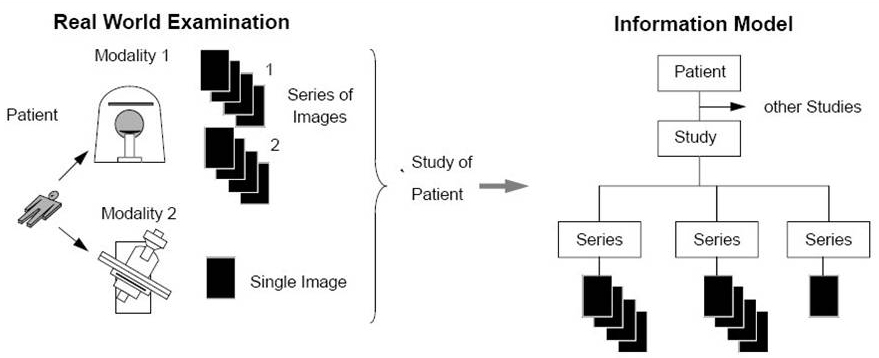
Dicom Image Scan Time


The Dicom tags of image scan time typically used are:

0008,0020: Study date;        0008,0030: Study time
0008,0021: Series date;      0008,0031: Series time
0008,0022: Acquis date;      0008,0032: Acquis time
0008,0023: Image date;       0008,0033: Image time

where Image date and time also called Content date and time.

Study date and time are generally used as the beginning of the radiologist starting to work on the scanner for the particular patient.

Series date and time/Acquisition date and time are kind of similar, logically series date and time are the starting point of a series image or in another word, the image volume. That is, they are different between volumes. However, because some volumes are secondary image derived from primary images, there could be different Series data and time of volumes shared the same Acquisition date and time.

Image date and time(Content  date and time) is the starting point of each single image slice.

Wednesday, March 8, 2017

Global Variable in MATLAB
The following information should help you understand how to use global variables and MATLAB workspaces.
MATLAB Workspaces
In order to understand global variables, you must first understand variables as they are normally stored in MATLAB.
All variables in MATLAB are stored in a workspace. 
When manipulating data at the command line, the variables are stored in the MATLAB base workspace. The contents of this workspace can be displayed by using the whos command.
MATLAB functions have their own workspaces, separate from the MATLAB workspace. Variables defined in this function workspace are automatically cleared from memory when the function returns.
MATLAB script files store all variables in the calling workspace. 
  - If a MATLAB script is called from the command line, the variables are stored in the base workspace. 
  - If the same script is called from a function, the script stores its variables in the function's workspace, and the variables are cleared when the function returns.
There is also a third type of workspace, the global workspace, where all global variables are stored. The contents of this workspace can be seen by using the whos global command. You cannot work directly in the global workspace, but variables in another workspace can be declared global using the GLOBAL command.
Creating Global Variables
Global variables are created using the global command. When the command
        global my_x
is issued, the following process occurs:
  1. If a variable called my_x exists in the global workspace, then its value is assigned to the local workspace's variable my_x. Any existing local variable my_x has its value overwritten.
  2. If no variable called my_x exists in the global workspace, but there is a variable my_x in the current workspace, then the local variable my_x is placed in the global workspace.
  3. If no variable exists in either the current workspace or the global workspace, then a new variable my_x is created and given the value [] (the empty matrix). This new variable is placed in the global workspace.
  4. The local variable and the global variable are then linked.

Note that there is opportunity for confusion here. Suppose you want a function MyFun to share a global variable, my_x, with the main MATLAB workspace, where it has a value. If you declare my_x global in MyFun first, then the global value for my_x becomes [], the empty matrix. If you then declare my_x global in the main MATLAB workspace, this empty matrix overwrites the local value for my_x, and its initial value is lost. Declaring the variable global in the main MATLAB workspace first, and then in MyFun, does the right thing -- the initial value for my_x is retained. Care must be taken to avoid this kind of mistake.
Tips for Working with the Global Workspace
Use care when naming global variables. Since all functions use the same global workspace, naming conflicts can easily occur. To avoid this, use unique, descriptive variable names for all global variables. Since variable names are case sensitive, capitalization can also be used to keep global variable names unique. For example, instead of using x, use Selected_X_Coord.
The commands CLEAR, WHO, and WHOS normally apply to the current workspace. These commands take an optional argument, global, which specifies that the command should be applied to the global workspace. For example, to show the contents of the global workspace, type at the MATLAB prompt:
    whos global
Clearing a variable from the local workspace (using 'clear my_x') breaks the link between the local and global variables, but does not erase the global variable.
Clearing a variable from the global workspace (using 'clear global my_x') completely erases the variable my_x from the local and global workspaces.
The ISGLOBAL function can be used to determine if a link exists between a local variable and the global workspace. This function does not determine if a variable exists in the global workspace; if the variable exists in the global workspace, but no link exists from a local variable, ISGLOBAL returns a zero (false).
The command PACK clears all variables from the global workspace. After PACK is issued, the global workspace is empty, and no variables have links to the global workspace. Therefore, take care when using the PACK command to re-declare variables as global after making the call to PACK.
Relevant commands: clear, global, isglobal, who, whos, pack

source: https://www.mathworks.com/matlabcentral/answers/99602-how-can-i-use-global-variables-and-matlab-workspaces

Tuesday, March 7, 2017

Use PostgreSQL database from R

Use PostgreSQL database from R
# install.packages("RPostgreSQL")
require("RPostgreSQL")
# create a connection
# save the password that we can "hide" it as best as
# we can by collapsing it
pw <- {
  "new_user_password"
}
# loads the PostgreSQL driver
drv <- dbDriver("PostgreSQL")
# creates a connection to the postgres database
# note that "con" will be used later in each connection to the database
con <- dbConnect(drv, dbname = "postgres",
                 host = "localhost", port = 5432,
                 user = "openpg", password = pw)
rm(pw) # removes the password
# check for the cartable
dbExistsTable(con, "cartable")
# TRUE

Now let’s open up a database connection and insert the table.
# Create a connection to the database
library('RPostgreSQL')
## Loading required package: DBI pg = dbDriver("PostgreSQL") # Local Postgres.app database; no password by default
# Of course, you fill in your own database information here.

con = dbConnect(pg, user="ninazumel", password="",
host="localhost", port=5432, dbname="ninazumel")
# write the table into the database.
# use row.names=FALSE to prevent the query
# from adding the column 'row.names' to the table
# in the db

dbWriteTable(con,'iris',iris, row.names=FALSE)
## [1] TRUE
https://www.r-bloggers.com/getting-started-with-postgresql-in-r/
http://www.win-vector.com/blog/2016/02/using-postgresql-in-r/

Monday, February 27, 2017

PostgreSQL Database Manipulation

- Create Database


1. Using sql command CREATE DATABASE

By default, the new database will be created by cloning the standard system database template1.

Syntax

The basic syntax of CREATE DATABASE statement is as follows:
CREATE DATABASE dbname;
where dbname is the name of a database to create.

Example

Following is a simple example, which will create testdb in your PostgreSQL schema:
postgres=# CREATE DATABASE testdb;
postgres-# 

2. Using createdb Command

PostgreSQL command line executable createdb is a wrapper around the SQL command CREATE DATABASE

Syntax

The syntax for createdb is as shown below:
createdb [option...] [dbname [description]]

Parameters

Table below lists the parameters with their descriptions.
ParameterDescription
dbnameThe name of a database to create.
descriptionSpecifies a comment to be associated with the newly created database.
optionscommand-line arguments, which createdb accepts.

Options

The following table lists the command line arguments createdb accepts:
OptionDescription
-D tablespaceSpecifies the default tablespace for the database.
-eEcho the commands that createdb generates and sends to the server.
-E encodingSpecifies the character encoding scheme to be used in this database.
-l localeSpecifies the locale to be used in this database.
-T templateSpecifies the template database from which to build this database.
--helpShow help about createdb command line arguments, and exit.
-h hostSpecifies the host name of the machine on which the server is running.
-p portSpecifies the TCP port or the local Unix domain socket file extension on which the server is listening for connections.
-U usernameUser name to connect as.
-wNever issue a password prompt.
-WForce createdb to prompt for a password before connecting to a database.
Open the command prompt and go to the directory where PostgreSQL is installed. Go to the bin directory and execute the following command to create a database.
createdb -h localhost -p 5432 -U postgres testdb
password ******
Above command will prompt you for password of the PostgreSQL admin user which is postgres by default so provide password and proceed to create your new dataabse.
Once a database is created using either of the above-mentioned methods, you can check it in the list of databases using \l, i.e., backslash el command as follows:
postgres-# \l
                             List of databases
   Name    |  Owner   | Encoding | Collate | Ctype |   Access privileges   
-----------+----------+----------+---------+-------+-----------------------
 postgres  | postgres | UTF8     | C       | C     | 
 template0 | postgres | UTF8     | C       | C     | =c/postgres          +
           |          |          |         |       | postgres=CTc/postgres
 template1 | postgres | UTF8     | C       | C     | =c/postgres          +
           |          |          |         |       | postgres=CTc/postgres
 testdb    | postgres | UTF8     | C       | C     | 
(4 rows)

postgres-# 

Sunday, February 26, 2017

Bash Comparison Operators

Integer comparison
    is equal to                          if [ "$a" -eq "$b" ]
    is not equal to                    if [ "$a" -ne "$b" ]
    is greater than                    if [ "$a" -gt "$b" ]
    is greater than or equal to   if [ "$a" -ge "$b" ]
    is less than                         if [ "$a" -lt   "$b" ]
    is less than or equal to        if [ "$a" -le  "$b" ]
    is less than                         if (("$a"  <   "$b"))
    is less than or equal to        if (("$a" <=  "$b"))
    is greater than                    if (("$a"  >   "$b"))
    is greater than or equal to   if (("$a" >=  "$b"))
String comparison
is equal to                          if [ "$a" = "$b" ]
(Note the whitespace framing the =if [ "$a"="$b" ] is not equivalent to the above.)
is equal to                          if [ "$a" == "$b" ]
         (This is a synonym for =.)

(The == comparison operator behaves differently within a double-brackets test than within single brackets.)


[[ $a == z* ]]   # True if $a starts with an "z" (pattern matching).
[[ $a == "z*" ]] # True if $a is equal to z* (literal matching).

[ $a == z* ]     # File globbing and word splitting take place.
[ "$a" == "z*" ] # True if $a is equal to z* (literal matching).

# Thanks, Stéphane Chazelas

is not equal to                     if [ "$a" != "$b" ]
        (This operator uses pattern matching within a [[ ... ]] construct.)
is less than, in ASCII alphabetical order
                     if [[ "$a" < "$b" ]]
                                          if [ "$a" \< "$b" ]
         (Note that the "<" needs to be escaped within a [ ] construct.)
is greater than, in ASCII alphabetical order
                                          if [[ "$a" > "$b" ]]
                                          if [ "$a" \> "$b" ]
         (Note that the ">" needs to be escaped within a [ ] construct.See Example 27-11 for an application of this comparison operator.)

string is null, that is, has zero length        if [ -z "$String" ]


 String=''   # Zero-length ("null") string variable.

if [ -z "$String" ]
then
  echo "\$String is null."
else
  echo "\$String is NOT null."
fi     # $String is null.
string is not null.                   if [ -n "$String" ]
The -n test requires that the string be quoted within the test brackets. Using an unquoted string with ! -z, or even just the unquoted string alone within test brackets (see Example 7-6) normally works, however, this is an unsafe practice. Always quote a tested string. [1]
Example 7-5. Arithmetic and string comparisons

#!/bin/bash

a=4
b=5

#  Here "a" and "b" can be treated either as integers or strings.
#  There is some blurring between the arithmetic and string comparisons,
#+ since Bash variables are not strongly typed.

#  Bash permits integer operations and comparisons on variables
#+ whose value consists of all-integer characters.
#  Caution advised, however.

echo

if [ "$a" -ne "$b" ]
then
  echo "$a is not equal to $b"
  echo "(arithmetic comparison)"
fi

echo

if [ "$a" != "$b" ]
then
  echo "$a is not equal to $b."
  echo "(string comparison)"
  #     "4"  != "5"
  # ASCII 52 != ASCII 53
fi

# In this particular instance, both "-ne" and "!=" work.

echo

exit 0
Example 7-6. Testing whether a string is null

#!/bin/bash
#  str-test.sh: Testing null strings and unquoted strings,
#+ but not strings and sealing wax, not to mention cabbages and kings . . .

# Using   if [ ... ]

# If a string has not been initialized, it has no defined value.
# This state is called "null" (not the same as zero!).

if [ -n $string1 ]    # string1 has not been declared or initialized.
then
  echo "String \"string1\" is not null."
else  
  echo "String \"string1\" is null."
fi                    # Wrong result.
# Shows $string1 as not null, although it was not initialized.

echo

# Let's try it again.

if [ -n "$string1" ]  # This time, $string1 is quoted.
then
  echo "String \"string1\" is not null."
else  
  echo "String \"string1\" is null."
fi                    # Quote strings within test brackets!

echo

if [ $string1 ]       # This time, $string1 stands naked.
then
  echo "String \"string1\" is not null."
else  
  echo "String \"string1\" is null."
fi                    # This works fine.
# The [ ... ] test operator alone detects whether the string is null.
# However it is good practice to quote it (if [ "$string1" ]).
#
# As Stephane Chazelas points out,
#    if [ $string1 ]    has one argument, "]"
#    if [ "$string1" ]  has two arguments, the empty "$string1" and "]" 


echo


string1=initialized

if [ $string1 ]       # Again, $string1 stands unquoted.
then
  echo "String \"string1\" is not null."
else  
  echo "String \"string1\" is null."
fi                    # Again, gives correct result.
# Still, it is better to quote it ("$string1"), because . . .


string1="a = b"

if [ $string1 ]       # Again, $string1 stands unquoted.
then
  echo "String \"string1\" is not null."
else  
  echo "String \"string1\" is null."
fi                    # Not quoting "$string1" now gives wrong result!

exit 0   # Thank you, also, Florian Wisser, for the "heads-up".
Example 7-7. zmore


#!/bin/bash
# zmore

# View gzipped files with 'more' filter.

E_NOARGS=85
E_NOTFOUND=86
E_NOTGZIP=87

if [ $# -eq 0 ] # same effect as:  if [ -z "$1" ]
# $1 can exist, but be empty:  zmore "" arg2 arg3
then
  echo "Usage: `basename $0` filename" >&2
  # Error message to stderr.
  exit $E_NOARGS
  # Returns 85 as exit status of script (error code).
fi  

filename=$1

if [ ! -f "$filename" ]   # Quoting $filename allows for possible spaces.
then
  echo "File $filename not found!" >&2   # Error message to stderr.
  exit $E_NOTFOUND
fi  

if [ ${filename##*.} != "gz" ]
# Using bracket in variable substitution.
then
  echo "File $1 is not a gzipped file!"
  exit $E_NOTGZIP
fi  

zcat $1 | more

# Uses the 'more' filter.
# May substitute 'less' if desired.

exit $?   # Script returns exit status of pipe.
#  Actually "exit $?" is unnecessary, as the script will, in any case,
#+ return the exit status of the last command executed.

Compound comparison
logical and              exp1 -a exp2 
                 returns true if both exp1 and exp2 are true.
logical or                 exp1 -o exp2 
                 returns true if either exp1 or exp2 is true.
These are similar to the Bash comparison operators && and ||, used within double brackets.

[[ condition1 && condition2 ]]
The -o and -a operators work with the test command or occur within single test brackets.

if [ "$expr1" -a "$expr2" ]
then
  echo "Both expr1 and expr2 are true."
else
  echo "Either expr1 or expr2 is false."
fi

But, as rihad points out:

[ 1 -eq 1 ] && [ -n "`echo true 1>&2`" ]   # true
[ 1 -eq 2 ] && [ -n "`echo true 1>&2`" ]   # (no output)
# ^^^^^^^ False condition. So far, everything as expected.

# However ...
[ 1 -eq 2 -a -n "`echo true 1>&2`" ]       # true
# ^^^^^^^ False condition. So, why "true" output?

# Is it because both condition clauses within brackets evaluate?
[[ 1 -eq 2 && -n "`echo true 1>&2`" ]]     # (no output)
# No, that's not it.

# Apparently && and || "short-circuit" while -a and -o do not.
source: http://tldp.org/LDP/abs/html/comparison-ops.html

NYSE:ORCL -- Oracle

26-03-11 ☁️ Oracle:杠杆的艺术 2026财年第三季度关键指标: ☁️营收增长加速(但存在一些问题):总营收达到 172 亿美元,同比增长 22%。按固定汇率计算,增长率仅为 18%,这意味着部分增长来自汇率波动,而非实际需求。 📦 积压订单持续攀升:RPO 达...